Notes on Running Qwen3.8:27B on an A100 (40GB)
· 11 min read
I got my hands on an NVIDIA A100 (40GB) GPU card, so I ran the currently popular Qwen3.8:27B on it. Cutting straight to the conclusion: it's putting out 40-50 Tokens/s, which I'm reasonably happy with.
50 Tokens/s on vLLM
First, before the detailed explanation, here's the result. I started vLLM on the A100 with the following parameters.
vllm serve cyankiwi/Qwen3.8-27B-AWQ-INT4 \
  --quantization compressed-tensors \
  --tensor-parallel-size 1 \
  --gpu-memory-utilization 0.9601 \
  --max-model-len 225280 \
  --kv-cache-dtype auto \
  --reasoning-parser qwen3 \
  --enable-auto-tool-choice \
  --tool-call-parser qwen3_coder \
  --default-chat-template-kwargs '{"reasoning_effort": "low"}' \
  --enable-prefix-caching
This is roughly the speed it's responding at. At this stage it's a speed that doesn't feel stressful at all.
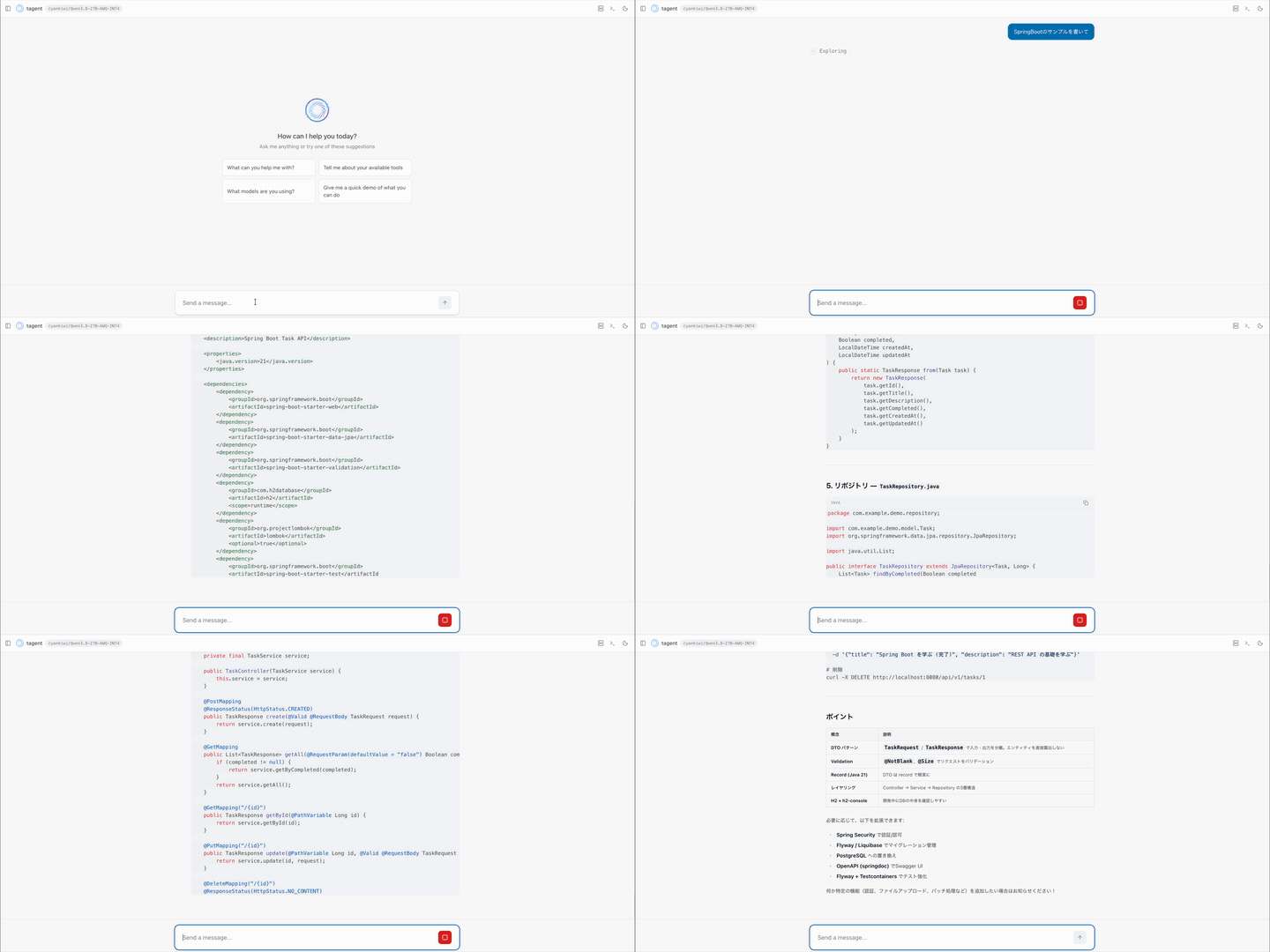
I've only just started using it, but here are my impressions so far.
- It handles fairly complex tasks and can keep running on a single prompt for hours.
- Compared to something like Claude Opus 5, the same task seems to take noticeably longer to finish.
- The resulting code holds up fine (at least at my level) against Opus 5.
- Once Qwen3.8:27B is loaded onto the A100 it uses up almost all of the vRAM, leaving no room for anything else.
- To avoid overflowing vRAM, I've capped the 256k context window down to 220k. (I feel like I could push it a bit further.)
- Surprisingly, the 256k context window can turn into a major weakness. Especially with a large codebase, just the initial read-through plus planning can burn through nearly half of the context. Once the context hits its limit, it basically stops accepting new tasks.
- Because I set max_model_len to 220K, for a full-length request it can basically only handle about 1 concurrent request (in my measurements, around 225,280 tokens takes roughly 1.10x as long; shorter requests can run several at once).
- At my level, it feels like having a Claude I can use freely, and that alone is simply fun.
Characteristics of the A100
This is my first time running an LLM on a GPU as well, and it really drove home how different each GPU's character can be. Here's what I learned about the A100's characteristics this time.
- Being a datacenter-class card, its vRAM memory bandwidth is 1.6TB/s (2.0TB/s for the 80GB model). That's on par with — or even better than — the latest high-end consumer GPUs, and it contributes a lot to the Tokens/s.
- With 40GB of vRAM, it can fit mid-range LLM models in the 20B-30B parameter range.
- That said, you also need vRAM for the context, so it's preferable to use a quantized model rather than a full-precision (bf16) one, to keep memory usage as low as possible.
- Offloading to CPU-side memory is possible, but doing so tanks performance dramatically, so it should be done with care.
- The A100's biggest weakness is that it's "old." Being a 6-year-old model, it can't support modern quantization schemes like FP8 (aimed at H100/H200) or FP4/NVFP4 (aimed at Blackwell), so its memory-compression efficiency is poor.
- It's still expensive (has become expensive, even).
What the vLLM Parameters Mean
Here's what each of them means.
- cyankiwi/Qwen3.8-27B-AWQ-INT4: As mentioned above, on an A100 you can't select a modern quantization scheme by default. (There apparently are some brave souls online who got it running anyway...) I'm using a model that cyan.kiwi provides, optimized for older GPUs.
- quantization compressed-tensors: The model's name includes AWQ (Activation-aware Weight Quantization), but according to the model card, compressed tensors was actually what was enabled, so I set that.
- tensor-parallel-size: Since I only have one GPU this time, it's necessarily 1.
- gpu-memory-utilization: At startup vLLM printed the message
[gpu_worker.py:575] CUDA graph memory profiling is enabled (default since v0.21.0). The current --gpu-memory-utilization=0.9300 is equivalent to --gpu-memory-utilization=0.8999 without CUDA graph memory profiling. To maintain the same effective KV cache size as before, increase --gpu-memory-utilization to 0.9601. To disable, set VLLM_MEMORY_PROFILER_ESTIMATE_CUDAGRAPHS=0.so I set this to reserve 93% of the memory. I think there's a bit more room to push it further. - max-model-len: After setting
gpu-memory-utilizationto 93%, I got the result[gpu_worker.py:560] Available KV cache memory: 15.45 GiB [kv_cache_utils.py:2177] GPU KV cache size: 246,735 tokens. I could ultimately raise this up to that value, but for now I've stopped at 220k. Also, the vLLM startup log had entries like "mamba page size" and "qwen_gdn_attention_core" — this seems to be because Qwen's Gated DeltaNet (linear attention) is used in a hybrid fashion, which appears to compress the KV cache size considerably. - kv-cache-dtype: This is a compute-time parameter unrelated to whether the GPU itself supports it, so FP8 should be selectable.
Going from FP16 to FP8 should in theory halve memory usage — that's the armchair reasoning, anyway. But as noted above under max-model-len, the KV cache is already being compressed quite effectively, so I'm leaving this at the default,
auto. I'll look into this further if I want to compress the context even more in the future. - enable-auto-tool-choice: This is the parameter for enabling tool execution, so it's basically mandatory.
- default-chat-template-kwargs '{"reasoning_effort": "low"}': Qwen models default to xhigh reasoning effort, and if left alone the model can end up thinking for longer than necessary, so I set the default to low.
- enable-prefix-caching: Enabling this printed
Warning: Prefix caching in Mamba cache 'align' mode is currently enabled. Its support for Mamba layers is experimental. Please report any issues you may observe.It's experimental, but it does seem to be in effect, and the cache hit rate went up, so I enabled it.
By the way, before vLLM I initially tried Ollama as well. However, with Ollama I ran into the following error and couldn't do much fine-grained performance tuning.
https://github.com/ollama/ollama/issues/17778
It seems to be common knowledge in general that if you want finer-grained tuning when running an LLM on a GPU, vLLM is the way to go.
Wrap-up
I'm happy to be able to run a state-of-the-art model on the A100 at quite a decent speed.